Key Takeaways — brief reading, less than 30 seconds
- Manual versioning — folders and "Save As" — works for solo designers but breaks the moment two people touch the same file.
- Git and developer version control systems fail for design because design files are binary: they cannot be diffed, merged, or meaningfully compared as text.
- Built-in versioning in Figma, Sketch, and Adobe CC only covers files inside that tool — real design workflows span multiple applications.
- Dedicated "Git for designers" tools (Abstract, Kactus, Plant) mostly failed because they forced a developer mental model onto a creative process.
- The most reliable version control for design teams is automatic and invisible: either your design tool's built-in history, cloud storage versioning, or a DAM that versions every file format in one place.
- The single most important best practice: never overwrite — always create a new version. Storage is cheap; lost work is not.
Glossary10 terms
- Version Control: A system that records changes to files over time so you can recall specific versions later. In software development this means Git; in design it ranges from folder naming to dedicated platforms.
- Versioning: The practice of creating and tracking distinct iterations of a file. Each version represents a snapshot of the file at a particular point in time.
- Binary File: A file that is not plain text — PSD, AI, SKETCH, INDD, and most design formats. Binary files cannot be meaningfully diffed or merged by text-based version control systems like Git.
- Diff: A comparison between two versions of a file showing exactly what changed. Easy for code (line-by-line text), difficult for design (requires visual or pixel-level comparison).
- Version History: A chronological record of all saved versions of a file. Figma, Sketch Cloud, and Adobe CC maintain version history for files saved to their platforms.
- Source of Truth: The single authoritative location where the current, canonical version of every asset lives. All other copies are considered working drafts.
- Design System: A collection of reusable components, tokens (colours, spacing, typography), and guidelines that ensure consistency across a product or brand. Design systems need their own versioning.
- DAM: Digital Asset Management — software for storing, organising, versioning, and distributing digital files such as images, videos, and documents across teams.
- Visual Diff: A side-by-side or overlay comparison of two image versions that highlights pixel-level differences. Essential for design version control since text-based diffs do not apply.
- Git LFS: Git Large File Storage — an extension that handles large binary files by storing them outside the main repository. Solves the size problem but not the diff or merge problem for design files.
Design is an industry shaped by constant change — techniques evolve, requirements shift, and new approaches emerge all the time. Yet despite all that evolution, version control in design stayed remarkably primitive for years: files stacked in folders, distinguished by names like final_v3_REAL.psd. Every now and then, someone tried to bring developer-style version control into the creative world, but those tools never stuck. The creative process demanded something different.
In this article, I want to walk through how version control in design got to where it is today — and explore the options that actually exist now.
Why Designers Need Version Control#
Developers figured out version control decades ago — same problem, different files. They needed to know what changed, who changed it, and how to undo it. Designers need all of that too, but with one extra requirement that changes everything: you have to see the difference. A line-by-line diff means nothing when the file is a photograph. And unlike code, design files carry layers of context — visual content, embedded camera data, project tags, usage rights — that a simple “old vs. new” comparison does not capture.
What makes this especially tricky for designers is that the files themselves resist easy comparison. A developer can diff two text files line by line. But how do you diff two PSD files? Two Figma frames? You open them side by side and squint — or you trust that whoever named the file got it right. Neither approach scales.
How Developers Do It (and Why That Doesn’t Translate)#
If you have ever worked with a developer, you have probably heard them mention Git. Git is what programmers use to track every change to every file in a project — a distributed system where each person has a full copy of the entire history. They create branches, commit snapshots, merge them back. It is elegant, battle-tested, and completely useless for a 400 MB Photoshop file.
Code is plain text. Git can compare two versions of a file line by line and show you exactly what changed: this function was added, that variable was renamed. Merge conflicts — when two people edit the same line — are resolved in a text editor. The entire workflow assumes that files are small, text-based, and diffable.
Design files break every one of those assumptions. A Photoshop file is a binary blob — compressed pixel data, layer metadata, and rendering instructions. Git can store it, but it cannot diff it. When two designers edit the same .psd, Git has no idea what changed and no way to merge the results.
There is also the size problem. A typical source code file is a few kilobytes. A typical design file is tens or hundreds of megabytes. Git stores every version of every file, so a repository with fifty revisions of a 200 MB PSD becomes unmanageable fast. Git LFS (Large File Storage) was created to handle this, but it adds complexity and still does not solve the diff problem.
Beyond the technical barriers, the mental model is wrong. Developers think in discrete commits: “I fixed the login bug” or “I added the payment form.” Design is more fluid — you nudge a colour, try a different typeface, adjust spacing, revert, try again. Asking a designer to pause and write a commit message every time they make a meaningful change interrupts the creative flow in a way that feels unnatural. Designers and developers solve different problems, and the tools that serve one group well often fail the other entirely.
The “Save As” Era: Manual Versioning#
Before any version control system existed for design, there were folders. And honestly, for solo designers and small studios, folders still work — if you are disciplined about it. The problem is not the method; it is consistency. Manual versioning only holds up when everyone on the team follows the same rules, every time, without exception.
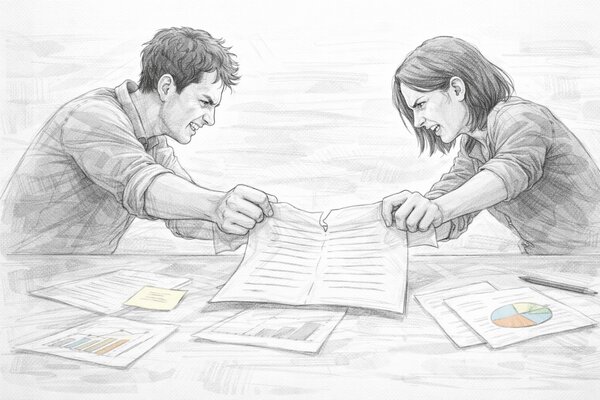
The limit of manual versioning is collaboration. When two people need to work on the same file, the folder method falls apart. Who has the latest version? Did Jake overwrite your changes? Is the file in Dropbox synced yet? The more people touch the same files, the more likely someone works on an outdated version — and the more you need version control that is automatic rather than manual. If this sounds familiar, we covered the broader progression from local folders to scalable systems in our guide on client file management.
Versioning in Design Tools#
Most design tools now have some form of version history built in. The question is how much you can rely on it.
Figma auto-saves continuously and lets you name specific versions as checkpoints. On the free plan you get 30 days of history; paid plans keep it indefinitely. You can browse, compare, and restore any saved version. For teams working entirely in Figma, this is genuinely good — it covers the basics of version control without any extra tooling. The catch: versions live inside Figma. You cannot export them, search across them, or connect them to assets that live outside Figma.
Sketch auto-saves to your local file and, if you use Sketch Cloud, stores version history there. Each save creates a recoverable snapshot. It works, but the history is tied to the .sketch file — move the file, rename it, or share it via Dropbox, and the version chain breaks.
Adobe Creative Cloud added cloud documents with auto-versioning for Photoshop and Illustrator. If you save to the cloud, Adobe keeps a version timeline. But most designers still work with local .psd and .ai files — and those have no version history at all. You are back to “Save As.”
Canva offers basic version history on team plans. Adequate for marketing teams doing quick edits, not sufficient for a design studio managing complex projects.
Design Tools with Built-in Versioning
- Figma(opens in new tab) — auto-saves continuously, named version checkpoints, 30-day history on free plan, unlimited on paid.
- Sketch(opens in new tab) — local auto-save with Sketch Cloud version history. History is tied to the file — moving or renaming breaks the chain.
- Adobe Creative Cloud(opens in new tab) — cloud documents with auto-versioning for Photoshop and Illustrator. Local .psd/.ai files have no version history.
- Canva(opens in new tab) — basic version history on team plans. Suitable for marketing edits, not complex design projects.
The fundamental problem with tool-level versioning: it is locked inside one tool. Real design workflows span multiple applications. Your brand guidelines are in Illustrator, your UI components are in Figma, your photo edits are in Photoshop, your presentations are in InDesign. No single design tool versions all of these. Your Figma history does not know about your PSD history. You end up with version silos — each tool tracking its own files, with no unified view of what changed across a project.
Version Control Systems for Design Teams#
Of course, people tried to fix this. If Git works so well for developers, surely someone could build the same thing for designers? Several well-funded startups bet on exactly that. Most of them are gone.
Abstract was the biggest and best-funded attempt. Launched in 2017, it brought Git-style branching and merging to Sketch files. You could create a branch, make changes, request a review, and merge — exactly like a developer workflow. It raised $30 million in funding and was acquired by Adobe. Then in 2023, Adobe shut it down. The lesson: forcing a developer workflow onto designers does not work. Most design teams never adopted branching. The mental model was too foreign, and the overhead of commits and merge conflicts was more friction than “Save As.”
Plant offered Sketch version control with visual diffs — you could see exactly what changed between two versions, pixel by pixel. It occupied a smaller niche than Abstract and remains available, though with a quiet user base. The visual diff feature was genuinely useful; the Sketch-only limitation was not.
Kactus took an open-source approach — a Git client specifically for Sketch files that could translate .sketch into JSON for proper diffing. It was technically clever but required designers to use Git, which defeated the purpose. The project is no longer maintained.
Versions by Sympli offered visual version comparison for design files across tools. It aimed to be tool-agnostic but never gained significant traction.
Design Version Control Tools (Past & Present)
- Abstract(opens in new tab)Shut down — Git-style branching and merging for Sketch files. Raised $30M, acquired by Adobe, service no longer operational.
- Plant(opens in new tab) — Sketch version control with pixel-level visual diffs. Still available, small user base.
- Kactus(opens in new tab)Abandoned — open-source Git client for Sketch files with JSON-based diffing. No longer maintained.
- Versions by Sympli(opens in new tab) — tool-agnostic visual version comparison for design files. Limited traction.
What actually survived and works today falls into two categories:
Cloud storage with versioning — Google Drive, Dropbox, and OneDrive all keep file version history automatically. Upload a new version of logo-final.ai, and the old one is preserved. This is not design-specific, but it works for any file type and requires zero new tools. The limitation: no visual comparison, no metadata, no review workflow. You can restore an old version, but you cannot see what changed without opening both files manually.
DAM platforms with built-in versioning — this is where the industry has moved. A digital asset management system like YetOnePro stores every version of every file automatically. Upload a new version and the old one is preserved with its full metadata. The key difference from cloud storage: visual comparison (side-by-side diff for images and PDFs), version-specific comments, approval workflows tied to specific versions, and the ability to search across all versions of all assets in one place. No branching, no commits, no command line — just upload and the system handles the rest.
Most of the “Git for designers” wave is gone now. What actually stuck? Tools where versioning happens in the background — no commits, no branches, nothing to remember. You just keep working, and the history builds itself.
Best Practices for Design Versioning#
We have watched enough teams lose work to know which habits actually stick. Here are the ones worth adopting before you learn them the hard way.
Never overwrite — always create a new version. Everyone nods at this one, and then someone saves over the only copy of last Tuesday’s approved layout. Overwriting destroys history. Even if your tool keeps version history automatically, build the reflex of treating every meaningful change as a separate revision. Working in a tool without automatic versioning? Hit “Save As” before you touch anything.
Link versions to feedback rounds. The most useful version markers are not “v1, v2, v3” but “pre-client-review, post-client-r1, post-client-r2.” When a client asks “can we go back to what we had before the last round?” you want to find that version in seconds, not by opening files one at a time until you recognise the right one. If your versioning tool supports notes or labels, use them. If not, a simple changelog text file in the project folder works.
Version your design system too. Icons, colour tokens, components — they drift just like project files. We have seen a team ship a landing page with last quarter’s button styles because nobody noticed the component library had been updated. If your icon set gets a revision, that change deserves the same versioning treatment as any client deliverable.
Establish a single source of truth. Figma project, shared drive, DAM — it does not matter which, as long as there is only one. The moment the same file lives in two places, someone will edit the wrong copy. We have seen it happen on Monday mornings after a weekend of “I just grabbed the file off Slack.” Pick one location, and treat everything else as a disposable working copy.
Archive, do not delete. Storage is cheap; context is not. Six months from now, a client will say “actually, we liked the first direction better.” If you deleted it, you are starting from scratch. If you archived it, you are starting from Tuesday’s save.
Automate wherever possible. Any process that depends on a designer remembering to do something extra will break by Thursday. If your tool auto-saves versions, lean on that. If your DAM creates a new version every time you upload, use that instead of manual folder shuffling. The version control that survives is the one nobody has to think about.
Choosing the Right Approach for Your Team#
Here is what nobody tells you in the “how to pick a tool” articles: team size barely matters. What matters is where the files actually live. Designers do not leave Photoshop to go version a file. They do not alt-tab to a version control app between saves. The work happens inside Figma, Illustrator, After Effects — and whatever versioning approach you choose either fits into that flow or gets ignored within a week.
So where does that leave you?
Rely on the design tool itself. Figma’s version history is the best example. Every change is saved automatically, you can name checkpoints, and restoring an old version is one click. If your entire team lives in Figma — UI, components, prototypes, the lot — this honestly might be enough. But the moment someone opens Photoshop for a photo retouch, or Illustrator for a print layout, or After Effects for a 15-second spot, Figma stops being the whole story. You have version history for your screens and a blank for everything else.
Use cloud storage as the versioning layer. Google Drive, Dropbox, OneDrive — they all quietly keep version history for every file you save. Most teams end up here by default because the files already live there, and it works for any format. The catch is that cloud storage versions files without understanding them. You cannot see what changed between two versions of a poster without opening both. There is no commenting, no approval step, no record of who uploaded what. It is a safety net, not a workflow.
A DAM as the central hub. A platform like YetOnePro sits outside any single design tool but talks to all of them. Drop in a PSD, and the previous version stays with its full metadata, a visual side-by-side, and every comment attached to that specific revision. It does the same for your Figma exports, your raw photographs, your icon library, your After Effects comps — all in one place. Yes, it is one more thing in your day. But if your projects already span three or four apps, it is also the only thing that versions all of them together.
Ask yourself one question: what happens when someone on your team opens the wrong version? If the answer is a Slack message and five wasted minutes, Figma or cloud storage is fine. If the answer is a misprinted brochure or a client presentation with last month’s logo — you probably need something that versions across every tool you use.
Either way, pick something your team will actually use on a Tuesday afternoon when they are behind on a deadline — not just something that looks good in a process document.
If your team works across multiple design tools and needs automatic versioning with visual comparison, try YetOnePro for free. Upload a few files, compare versions side by side, and see if it fits your workflow. No credit card, no commitment.
Frequently Asked Questions #
What is version control for designers?
Can designers use Git for version control?
What is the best version control system for design teams?
How is version control for designers different from version control for developers?
Do I need version control if I work alone?
What is the difference between version history and version control?
How should I name design file versions?
What happened to Abstract, the design version control tool?